Inside ImageFree
How We Test Image Tools
A reproducible method for checking prompts, uploads, returned files, visual defects, and publishing suitability without inventing success rates.
Published by ImageFree AI · Updated
Testing an image tool means checking whether a returned file meets a defined purpose. A request being accepted, a progress bar moving, or a preview looking attractive does not answer that question by itself. Our method separates the technical outcome of a request from the visual usefulness of its result.
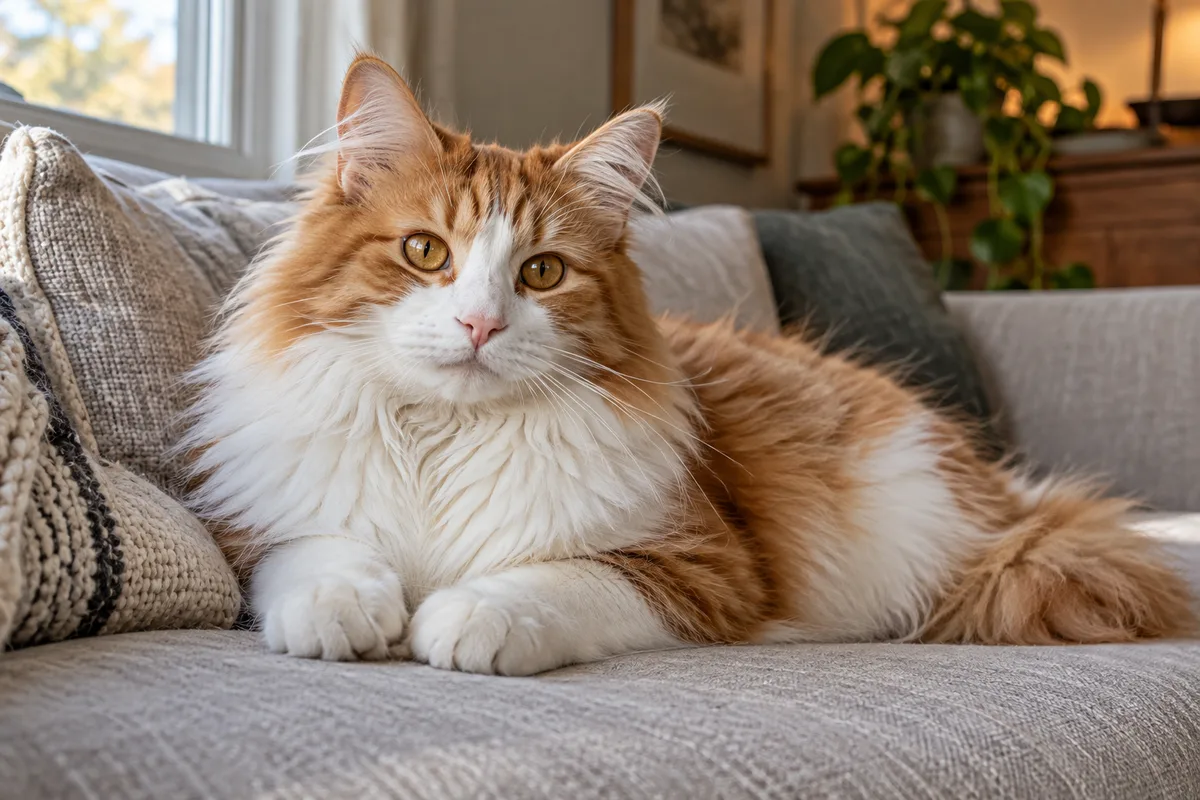
This page is a testing protocol, not a new benchmark report. The cat illustration is a source example for discussing fine edges; it is not a claimed background-removal or upscaling result. Individual test articles should identify the files and observations produced by their own runs. Our editorial policy explains how those claims should be presented.
Define the task and the acceptance criteria
Start with the intended use. An illustration for a personal mood board can tolerate interpretation that would be unacceptable in a product listing or documentary photograph. Write down the details that must remain accurate before looking at a generated candidate.
For a fictional landscape, acceptance might depend on composition, subject count, and a useful crop. For an edit of a real product, the protected details might include the label, silhouette, dimensions, ports, and color. For a portrait, a plausible face is not enough if the result changes the person's identity.
Choose a fallback in advance: keep the source, make a manual correction, request a better photograph, or publish another visual. A test should allow a result to be rejected. Repeatedly changing the criteria until an image passes makes the exercise less informative.
Record the input and the tool conditions
Keep the exact prompt, the source file when appropriate, its dimensions and format, the tool used, available settings, and the date of the run. Record the actual aspect ratio or scale control instead of guessing from a screenshot. If the interface does not expose a seed, model version, or local mask, do not invent one in the test notes.
These are the current free upload-interface limits. They differ by tool and apply consistently across the translated interfaces:
| Tool | Upload | Purpose |
|---|---|---|
| AI photo editor | JPG, PNG, WebP Up to 10 MB | Generative image edit |
| Background remover | JPG, PNG, WebP Up to 20 MB | Transparent PNG |
| Image upscaler | JPG, PNG, WebP Up to 1 MB | 2× width and height |
A limit in this table is not a promise that every accepted image will process successfully. Queues, security checks, service availability, and image characteristics can affect the outcome. See the limits and troubleshooting guide for how to distinguish those conditions.
Do not include credentials or unnecessary personal information in a test record. Use material you have permission to process, and keep a safe reproduction separate from a confidential original.
Report what happened to the request
Use distinct outcome labels: rejected before processing, queued, processing, completed, and failed. State the observation window when waiting matters. If a task remains pending when observation ends, report it as pending; do not silently convert it to a failure or a success.
For a completed task, save the returned file before temporary storage expires. Confirm that the file opens and inspect its actual format and dimensions. A webpage thumbnail may be resized or compressed and should not be treated as the authoritative output.
Timing claims should explain the start and end events. Time from submission to a visible preview can differ from time spent processing, and a download may finish later. A single run does not establish a typical speed for all users. Avoid giving a precise service-wide promise from a narrow observation.
Inspect a generated image or photo edit
View the full frame first, then compare the important areas at 100% zoom. Check the requested subject count, framing, text, geometry, shadows, reflections, and any details protected by the brief. Save the original beside the result so you can identify what changed.
For a generative edit, the instruction to keep everything else unchanged is a request, not a guarantee. An outfit edit can alter a face or background. A relighting request can redraw a product. A successful mood change does not automatically compensate for a damaged factual detail.
Our outfit-change walkthrough provides prompts and corresponding example images that can be inspected together. A useful review states both what fits the requested direction and what remains uncertain; it should not infer exact identity preservation from a small preview.
Inspect transparency and enlarged detail
For background removal, place the downloaded PNG over white, a dark color, and the intended final background. Inspect the outer silhouette and internal gaps. Hair, fine laces, handles, glass, and contact shadows deserve separate attention. A checkerboard preview alone may hide pale remnants of the original background.
For upscaling, check both the output dimensions and the appearance of the details. A 900 × 600 source enlarged 2× should have a 1800 × 1200 pixel grid. That arithmetic does not prove that the added texture is accurate. Look for halos, altered lettering, repeated texture, and changes to small faces.
Compare at matched viewing sizes as well as at 100%. A larger file can look more impressive simply because it occupies more screen space. For a publishing decision, the relevant question is whether it looks better in the actual destination without introducing unacceptable changes.
Separate a visual example from a measured rate
A case study can be useful with one returned result if its scope is clear. It cannot establish a general success percentage. To report a rate, define the sample selection, number of attempts, acceptance criteria, treatment of retries, and handling of pending or failed requests before calculating it.
Keep unsuccessful examples in the record rather than only showing the strongest result. Distinguish technical completion from visual acceptance: a model can return a valid image that fails the task brief. Conversely, an unfinished task tells you about the observed request status, not about the quality of an output that has not arrived.
Do not compare two services using different crops, prompts, or display sizes and attribute every difference to model quality. If conditions cannot be matched, describe the limitation. Product documentation can support a feature comparison without pretending to be a controlled output experiment.
Make the result useful to the next reader
A practical test note includes the task, input, settings, outcome, saved output, visible defects, and a keep-or-reject decision. Where a source cannot be shared, explain the resulting reproducibility limit instead of suggesting that readers can fully repeat the test.
Separate old observations from new product information. An updated article may explain a changed interface while retaining a historical test; the test date should remain identifiable. Do not give an old run a new date merely because surrounding prose changed.
If you find an unsupported claim or cannot reproduce a documented step, send the URL, the relevant passage, and a non-sensitive description through Contact. For your own publishing workflow, use the quality checklist after every crop, edit, or enlargement. The final decision belongs to the intended use of the delivered file, not to the confidence of the generation prompt.